
Table of Contents
** Minutes
How to build Tuft & Paw’s AI tools: a step-by-step guide
How to connect ShipBob MCP to Claude
Tuft & Paw, a premium cat care brand, connected ShipBob MCP to Claude at ShipBob’s Fulfilled event and now uses it daily to help optimize its operation.
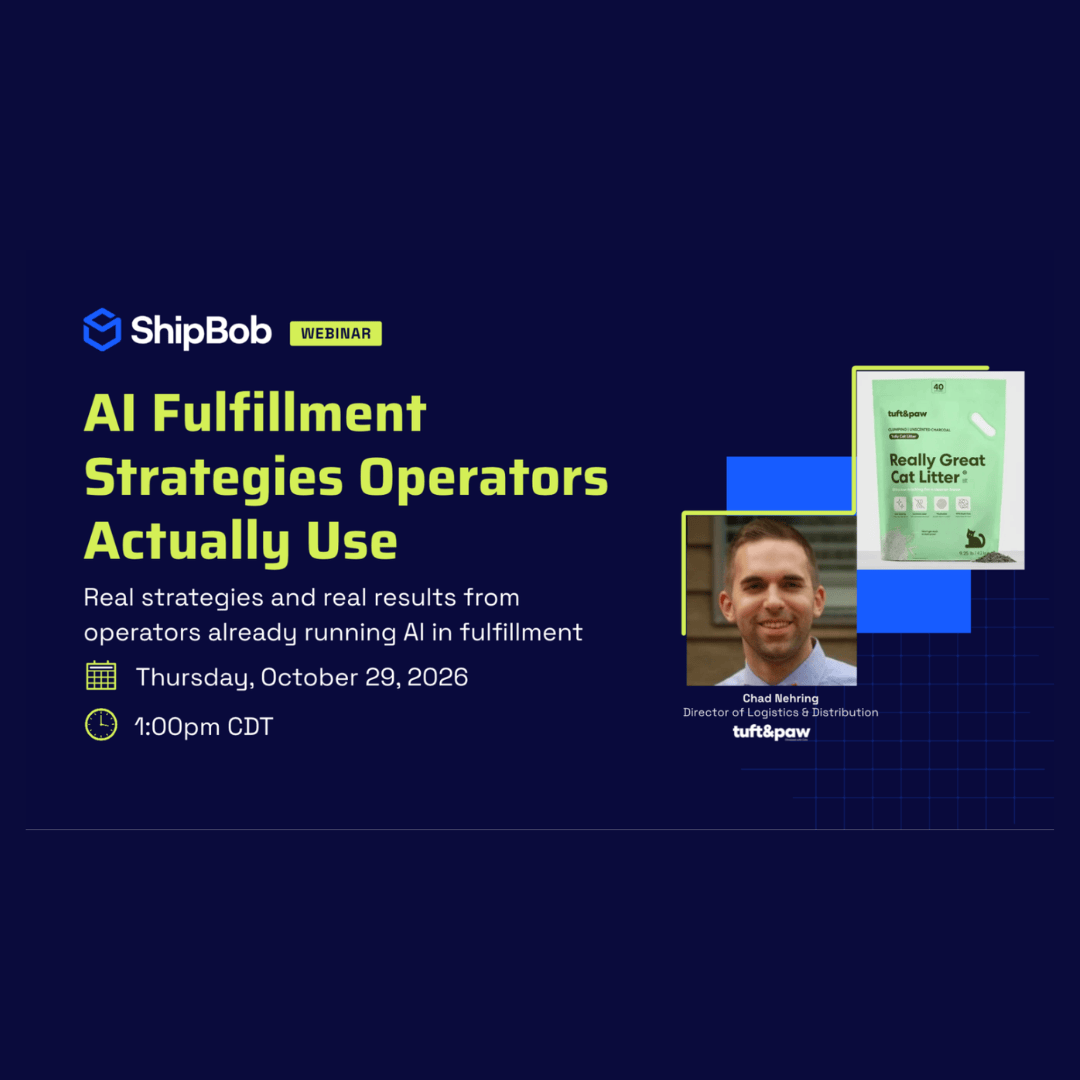
Chad Nehring, Director of Logistics and Distribution, shared his favorite use cases plus three tools he built using ShipBob’s MCP and AI solutions.
Chad Nehring, Director of Logistics and Distribution at Tuft & Paw, uses ShipBob MCP not only to identify trends in their supply chain analytics, but to build functional tools to replace previously unachievable tasks.
For example, he ran an ad hoc test to see if products were shipping in their optimal containers. This one check turned up two products shipping together in an oversized box, which triggered a $275 surcharge. This led the team to review their product settings, which were set to combine these items. Chad changed the settings, the products now ship in their own containers, and the shipment costs $20, as it should.
He shared that story, plus three tools he built since, in ShipBob’s webinar AI Fulfillment Strategies Operators Actually Use. Below is a step-by-step guide to each tool.
New to MCP? Start with our step-by-step guide to connecting ShipBob MCP to Claude or ChatGPT.
The real payoff
Connecting ShipBob MCP was easy for Tuft & Paw. Getting the team comfortable with AI was a more difficult decision. When he first showed off MCP, the team pushed back.
So, Chad started with a read-only option. Adoption took off, and Chad moved the whole team onto a shared Claude plan. He’s now exploring write access too, rolling it out person by person.
He’s proved the value of enabling ShipBob’s MCP across their supply chain. Each tool he’s built saves significant time compared with the manual Excel route, but Chad says that misses the point.
“It’s not the time that we saved. It’s what it’s allowed us to do that we couldn’t do before.”
Chad Nehring, Director of Logistics and Distribution at Tuft & Paw
How to build Tuft & Paw’s AI tools: a step-by-step guide
Your ops team generates data every minute: orders, inventory, shipments. Connecting ShipBob MCP puts that live data in front of Claude, so a question gets answered in the same conversation.
Each tutorial below is a tool Chad built using ShipBob’s MCP. The steps are adapted from his walkthrough, and you can find more starter prompts in ShipBob’s GitHub repo.
How to connect ShipBob MCP to Claude
What you’ll learn: How to connect Claude Desktop to your ShipBob account, so Claude can see your live fulfillment data and act on it.
What you’ll need: A Claude account and a ShipBob account.
Steps
- Open Claude Desktop and go to Settings, then Connectors.
- Search for ShipBob and select it.
- Click Connect.
- Sign in with your ShipBob account when prompted, then click Authorize.
- Confirm ShipBob shows as Active in your Connectors list.
To confirm it worked, start a new chat and try: “What can ShipBob MCP do for me?”
What to expect: Claude lists what it can access, typically orders, inventory levels, shipments, and receiving. Using ChatGPT instead? Follow our full setup guide.
Inbound & Outbound Cost Simulator
What you’ll learn: How to build a cost simulator that turns dims, weight, and zone mix into a real cost per unit.
What you’ll need: ShipBob MCP connected to Claude, your ShipBob rate cards as PDFs, and carrier zone information. Budgeted PO and container costs from your ERP system are optional, but Chad includes them.
Product teams keep asking operations the same question: what will it cost us to move new products and inventory? Answering it used to mean a scramble across Excel files, rate cards, and zone charts.
Steps
- Ask Claude to pull your last three months of orders through ShipBob MCP.
- Upload your ShipBob rate cards as PDFs. Add carrier zone information and budgeted PO and container costs.
- Ask Claude to build a calculator where your product team enters a package’s dimensions and weight and gets inbound and outbound cost per unit.
- Schedule a daily refresh with Claude Routines. Chad’s runs every morning at 4 a.m. so that data is ready when he logs on for the day.
What to expect: Inbound and outbound cost per unit in seconds.
- Inbound. The simulator shows how a 40-foot container from Asia loads and whether space or weight is the limit. Tuft & Paw always hits the 43,500-pound limit first. In the demo, a 25-pound product used only 31% of the container’s cube.
- Outbound. It uses historical shipments to estimate the zone for any destination. For St. Louis, Missouri, it showed Texas as the best origin and Zone 4 as the most common landing zone. It also compares actual and dimensional weight and shows which one gets billed.
Tuft & Paw has already caught designs pushing up against the 50-pound surcharge threshold. The team can also test a change, like shrinking a box by three inches, and see the unit cost impact right away.
DTC Shipping Cost Calculator
What you’ll learn: How to set up a weekly report that flags unexpectedly expensive DTC shipments before they become a pattern.
What you’ll need: ShipBob MCP connected to Claude, plus your rate tables and product weights, so you know which shipments shouldn’t cost much.
At roughly 30,000 DTC orders a month, one expensive shipment is easy to miss. With ShipBob’s MCP, Tuft & Paw can catch anomalies quickly.
Steps
- Ask Claude to review last week’s shipments through ShipBob MCP.
- Have it list every shipment that cost more than $100.
- Schedule it with Claude Routines. Chad’s runs every Monday at 3 a.m.
- Investigate each outlier. Check the destination postal code, the order value, and the customer’s ordering pattern.
- Act on what you find. Chad brings patterns to his care team.
What to expect: Findings you can act on. Tuft & Paw’s report has surfaced:
- Rural ZIP codes that Tuft & Paw had turned off in the past.
- Canadian postal codes with a zero as the second digit, which signals a remote, hard-to-reach area.
- A $30 product, ordered once a month, costing Tuft & Paw $100 to ship.
- Subscribers in rural ZIP codes who receive one pack of litter every month.
That last finding is the most actionable. Those customers generate 12 expensive shipments a year. The care team can ask whether they’d switch to a 3-month subscription, so 1quarterly shipment replaces 12 monthly ones.
A few weeks after building the report, Chad ran it on a Monday and got nothing but null values. He assumed it was broken. It wasn’t. Every shipment over $100 was gone, because the fixes had worked. He built a second table for shipments between $50 and $100 to go after the next tier.
B2B dashboard
What you’ll learn: How to build a dashboard that shows where retail orders get stuck and where to optimize inventory placement.
What you’ll need: ShipBob MCP connected to Claude and B2B orders in your ShipBob account.
Tuft & Paw added PetSmart last year and Petco this year, and began shipping with ShipBob in April, so B2B was new. SLAs, compliance requirements, and appointment windows all needed close watching, and the team had no way to monitor them. Chad built the dashboard in a couple of hours to easily monitor their new B2B channels.
Steps
- Ask Claude to pull your B2B orders through ShipBob MCP.
- Ask it to build a dashboard with a live order view, retailer toggles, and a date filter.
- Add units shipped over time, plus ship speed and SLA compliance.
- Add a comparison of the fulfillment center each order shipped from against the ideal one.
- Schedule a daily refresh so the view stays current.
What to expect: Two findings stood out for Tuft & Paw.
- Retailer appointment delays. Some orders took a long time to leave the building, and the dashboard showed it wasn’t a warehouse problem. Chewy’s fulfillment centers were busy and offering appointments two weeks after orders were ready to ship. Without an appointment, the carrier wouldn’t pick up the freight.
- Inventory ping-pong. One new product sold faster than expected. When California was the only fulfillment center with stock, Tuft & Paw shipped to Pennsylvania distribution centers from California. When a container landed in Pennsylvania, orders went the other way. A cross-country truck can run $6,000 to $8,000, compared with about $1,000 for a local run.
Inventory placement runs through all three tools. Chad noted that brands using ShipBob’s Inventory Placement Program (IPP) are probably in better shape than Tuft & Paw, which manages its own placement.
Three tips from Tuft & Paw
1
Turn over the rocks.
Chad’s biggest hurdle was not knowing what to ask, because he hadn’t tried yet. Start by asking what Claude can see in your ShipBob account, and go looking for surcharges, bad shipping, and inventory in the wrong place.
2
Run hypotheticals.
What if we open this warehouse or close that one and consolidate? Every scenario Chad runs gives him an idea for the next one.
3
Don’t chase perfection.
Chad gets about 90% confidence from what MCP surfaces, and he still validates anything crucial himself. “Don’t let that idea of perfection stop you from trying.”
Sagar’s advice matches. If you wonder whether Claude can answer something you handle day to day, ask it anyway.
Want to see it live?
Explore ShipBob AI or check out the starter prompts and templates in ShipBob’s GitHub repo, built to go along with ShipBob MCP.
FAQs
Do I need a developer background to build tools like Tuft & Paw’s?

No. Chad leads logistics and distribution, and he describes himself as someone who dabbles in IT. He built these tools by working with Claude. Connecting ShipBob MCP takes a few clicks.
Can ShipBob MCP change things in my account, or only read data?
Both. Tuft & Paw started with read-only access, and ShipBob MCP also supports write actions. Every write action asks for your confirmation first.
Does ShipBob have a community for sharing prompts?
Not yet. ShipBob publishes starter prompts and use cases in its GitHub repo, and you can raise a pull request to add your own.


